

Frequently asked questions
Find answers to common questions about investing with InvestNow, your account and the investments available.
Who is Cloudcheck?
Cloudcheck is the technology partner we work with to provide a customer identity verification solution – specifically we use their IDScan solution for the bio-metric identity verification. Learn more about Cloudcheck here.
What do each of the column headings mean for the fund manager table?
Sector:
Sector refers to the type of asset the managed fund invests into, such as a diversified fund, cash fund, listed property fund, etc.
PDS Fee:
The PDS fee is the annual management fee estimate as stated in the Product Disclosure Statement (PDS) for this fund.
QFU Fee:
The Quarterly Fund Update (QFU) Fee is the latest actual fee charged by the fund in its most recent financial year, as stated in the fund’s most recent Quarterly Fund Update.
Buy/Sell Spread:
When you buy or sell units in a fund, you may be charged a buy or sell spread, which will be a cost to you. The buy spread is added to the unit price of the fund when you buy units, and the sell spread is deducted from the unit price when you sell units. The buy/sell spreads belong to the fund and are not fees paid to InvestNow or the investment manager. The purpose of buy/sell spreads is to make sure that any trading costs incurred as a result of an investor making a investments into or redemptions from a fund are borne by that investor, and not other investors in the fund.
Buy/Sell Transaction Fee:
When you buy or sell units in a fund, you may be charged a buy or sell transaction fee, which will be a cost to you. These fees are charged to cover the costs of the underlying brokerage, foreign currency exchange, transaction costs or investment management service fees associated with investing in the underlying investments.
1 Month, 3 Month, 6 Months, 12 Months, 1 Year, 3 Years, 5 Years, 10 Years:
These are performance periods for the performance figures that are stated. Periods above 1 year represent annualised performance.
Risk Indicator:
The risk indicator is the risk rating of a fund, which is rated from 1 (low) to 7 (high). The risk indicator ranges from defensive (being less volatile and more conservative) to aggressive at the upper end (being more volatile and less conservative).
Target Growth/Income Assets:
The portion of growth assets (such as shares, property, etc) that the fund targets relative to income assets (such as cash and bonds).
Management Style:
Management style outlines whether the fund is actively or passively managed. Active management involves identifying mispriced securities with the goal of generating returns above the market index, while passive management broadly aims to track rather than outperform the chosen market index.
Fund Type:
Managed Funds on InvestNow are classified as either Multi-Rate Portfolio Investment Entities (PIE), Listed Portfolio Investment Entities (Listed PIE) or Australian Unit Trusts (AUT).
Each of these constitute different managed fund structures which among other things will impact the tax treatment of the fund. PIEs are taxed at the investor’s Prescribed Investor Rate of either 0%, 10.5%, 17.5% or 28%, while Listed PIEs are taxed at a flat 28% rate. AUTs are overseas based investments and fall under the Foreign Investment Fund (FIF) tax regime, which taxes investment income at the investor’s marginal income tax rate of either 10.5%, 17.5%, 30%, 33% or 39%.
Net Assets:
Represents the Fund’s total Funds Under Management (FUM) in millions.
Inception Date:
This is the date of when the fund was first created.
Distribution Frequency:
This is the frequency that any distributions will be paid out. This could be monthly, quarterly, annually, etc.
Buy Timeframe:
Indicative number of business days for your buy order to be processed.
Sell Timeframe:
Indicative number of business days for your sell order to be processed.
Smart Investor:
Smart Investor is a tool from Sorted, used to find and compare managed funds and other regulated investment offers in New Zealand.
External website:
This is the link to the fund managers website where you can learn more about them and their funds.
PDS:
PDS stands for Product Disclosure Statement. The PDS contains relevant information about the fund.
How can I produce reports for my Managed Funds, Term Deposit or KiwiSaver Portfolios?
Producing reports for your Managed Funds & TDs portfolio
Once logged in there are three types of reports you can produce, for whatever period you choose:
- General Ledger Report – provides information about your portfolio returns, contributions, tax information, and more (Excel format)
- Investment Report – provides information about your portfolio returns, contributions, tax information, and more (PDF format)
- Tax Summary Report – provides detailed tax information and guidance – can be useful for completing any tax returns (Excel format)
You can create any of the above reports by following these steps:
- Click the “Documents” tab
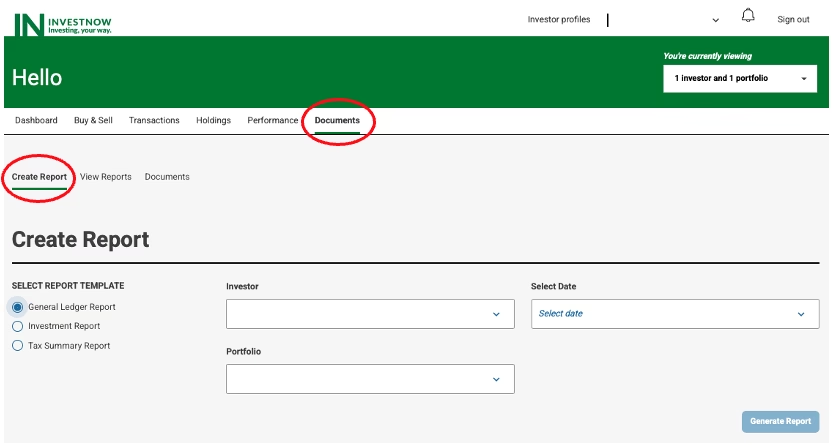
- Select the required report under “Report Template”,
- Select the Investor & Portfolio (this is only relevant when you are linked to 1+ InvestNow portfolios), and the time period under “Select Date”,
- Click “Generate Report”.
Producing reports for your KiwiSaver portfolio
Once logged in there are three types of reports you can produce, for whatever period you choose:
- General Ledger Report – provides information about your portfolio returns, contributions, tax information, and more (Excel format)
- Investment Report – provides information about your portfolio returns, contributions, tax information, and more (PDF format)
- Management Accounts Report – provides more detailed information that may be of use to you and/or your accountant (Excel format)
You can create any of the above reports by following these steps:
- Click the “Documents” tab
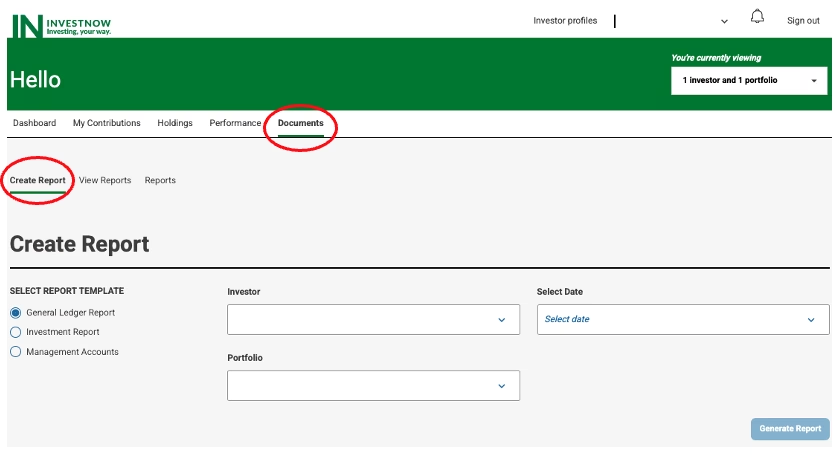
- Select the required report under “Report Template” and the time period under “Select Date”.
- Click “Generate Report”
Note: For some report types there may be other parameters you can select to further customise the report. And, depending upon the report type chosen, a copy will be downloaded to your device or available in the “View Reports” page.
Multi-Factor Authentication
How can I update my Multi-Factor Authentication (MFA) preference?
There are now three options available to you, for receiving your unique passcode each time you login:
- SMS/Text
- Authentication App (NEW).
To change your MFA preference and/or switch to the Authentication App, follow these simple steps:
1) Log into your account
2) Click on the email address that appears in the top righthand side of the page:

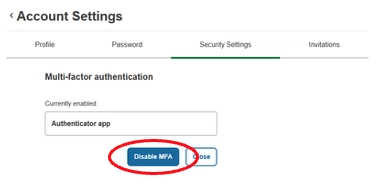
3) Select “Security Settings“:

4) Select the “Disable MFA” option:
4) Sign out of your account:
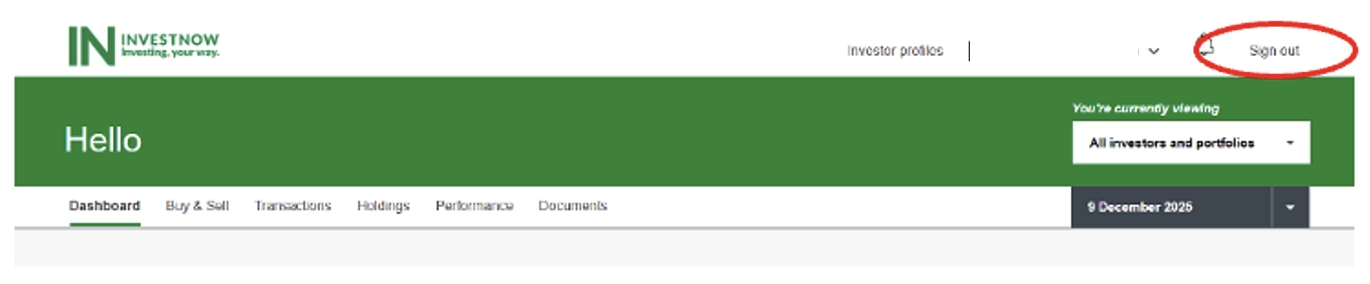
The next time you login you will be presented with the ability to select from the three MFA options available to you.
- Authenticator app – this will work with most common authenticator apps (Google, Microsoft, etc.). You will need to scan the QR code to set this up or alternatively enter in the set-up key to your app.
- Email – you will be sent a code to your email address
- SMS – you will need to enter in your mobile number and you will receive a code via text message
Select the one you want to use and follow the simple instructions:
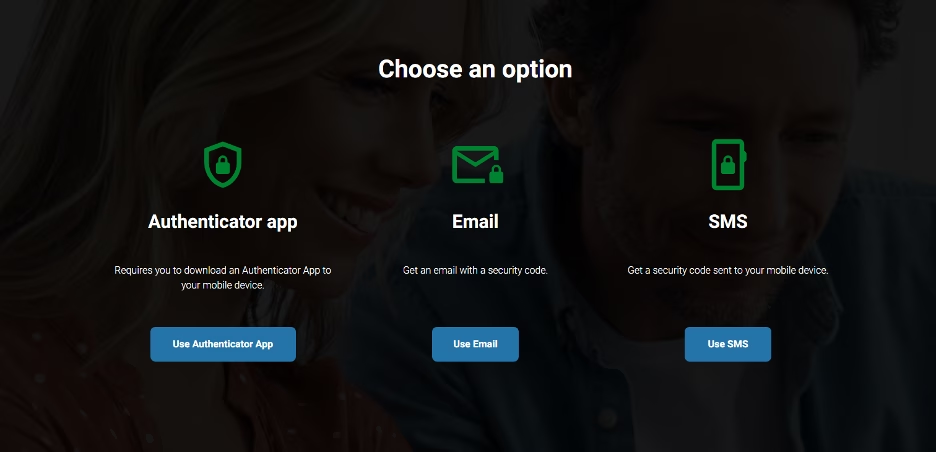
Note: You can repeat these steps should you wish to change your MFA preference at any time.
Can I open a child/youth account?
Can I open an account for a child or youth account?
Yes, go to the “Join” page and follow the simple steps, noting that you will need the following:
- An email address for your child.
- A copy of their current New Zealand birth certificate or New Zealand passport.
- An IRD number for your child.
- A bank statement for the nominated bank account. This can be in your name or your child’s name.
Once you click “Join“, select the youth account option, having the child as the owner of the account. You will select manual verification for them so you can upload a copy of their identity document.
You will add yourself as the parent/guardian, using your email address and entering in your details. At the end of the application, you will select yourself to be the authoriser on the account.
Can I transfer my KiwiSaver investment to my Australian Super Scheme?
Yes, you can. Please send us an email (contact@investnow.co.nz) and we will send you a form to complete, along with supplying the following supporting documents:
- Proof of your Australian Superannuation Fund’s bank account. It must show the bank account name, bank account number, swift code, and logo of the bank.
- A letter from your Australian Superannuation Fund confirming that they accept KiwiSaver transfers.
- Evidence of your permanent residence at an Australian address, for example:
- a copy of a property sale and purchase agreement; or
- tenancy/leasing agreement for an overseas property; and
- recent utility bill; or bank statement
- Evidence of your departure from New Zealand, for example:
- evidence of confirmed travel arrangements; or
- passport evidence; or
- evidence of any necessary visas or shipping contracts/documentation; or
- evidence of Australian employment, i.e. a copy of a contract or letter from your Australian employer; or
- evidence of your Australian tax status issued by the relevant Australian tax authority
Upon completion, please return the Transfer Form, and supporting documents us and we will be in touch should we have any questions.
Now that I am over 65, how do I withdraw money from my KiwiSaver portfolio?
Please send us an email (contact@investnow.co.nz) and we will send you a form to complete for the first time you request such a withdrawal – note that you will need to have the statutory declaration witnessed.
The form, along with the deposit slip confirming your bank account, can be scanned and emailed back to us.
For any any subsequent withdrawals just email us we will process the it.
How do I make a Permanent Emigration Withdrawal from my KiwiSaver portfolio?
Please send us an email (contact@investnow.co.nz) and we will send you a form to complete.
Please return the completed form and return it, and all supporting documents (these can be scanned and emailed to us):
- Evidence such as copies of passport pages showing date of departure or evidence of necessary visas.
- Provide utility bills or rental agreements if you have these for the last 12 months.
Please note that the amount you can withdraw won’t include any government contributions you may have received during your time as a KiwiSaver member.
How do I make a Hardship Application from my KiwiSaver portfolio?
Please send us an email (contact@investnow.co.nz) and we will send you a form to complete.
You will also need to provide supporting documents for the last three months regarding income, debts, and expenses you have (please note that the Statutory Declaration must be completed before the Scheme Supervisor will review the application).
Supporting documents include:
- Bank statements and utility bills
- Invoices
- Debt letters
- Credit card statements
- Fines or credit notices
- Any other documents you believe a relevant
You can apply to withdraw all the funds in your KiwiSaver account excluding the kick-start (if applicable) or any Government contributions, but this doesn’t mean that you will be entitled to receive this amount in full.
Please contact us if you have any questions at contact@investnow.co.nz or at 088499466.
What happens when my child turns 18?
Once your child is over the age of 18 we need to allow them access to their InvestNow account.
As a starting point, you will need to confirm their email address (send us an email to contact@investnow.co.nz) ? Once we have this we will send an email to both of you with the steps that we need to complete to allow them access to their account.
Still need help?
If you can’t find the answer you’re looking for, there are other ways to get help.
Contact us
Get in touch with the InvestNow team, Monday to Friday, 8:30am–5:00pm. Call 0800 499 466 (from overseas +64 4 499 9691) or email contact@investnow.co.nz.
Contact usSecure portal guide
Step-by-step help with using your InvestNow account and the secure portal.
View the guideSpeak with a financial adviser
InvestNow doesn’t provide personalised advice. A financial adviser can help you choose investments for your situation.
Find a financial adviser
Ready to get started?
Explore the investment options available through InvestNow and invest in your own way.